

Snapchat UTMs Setup
- 1
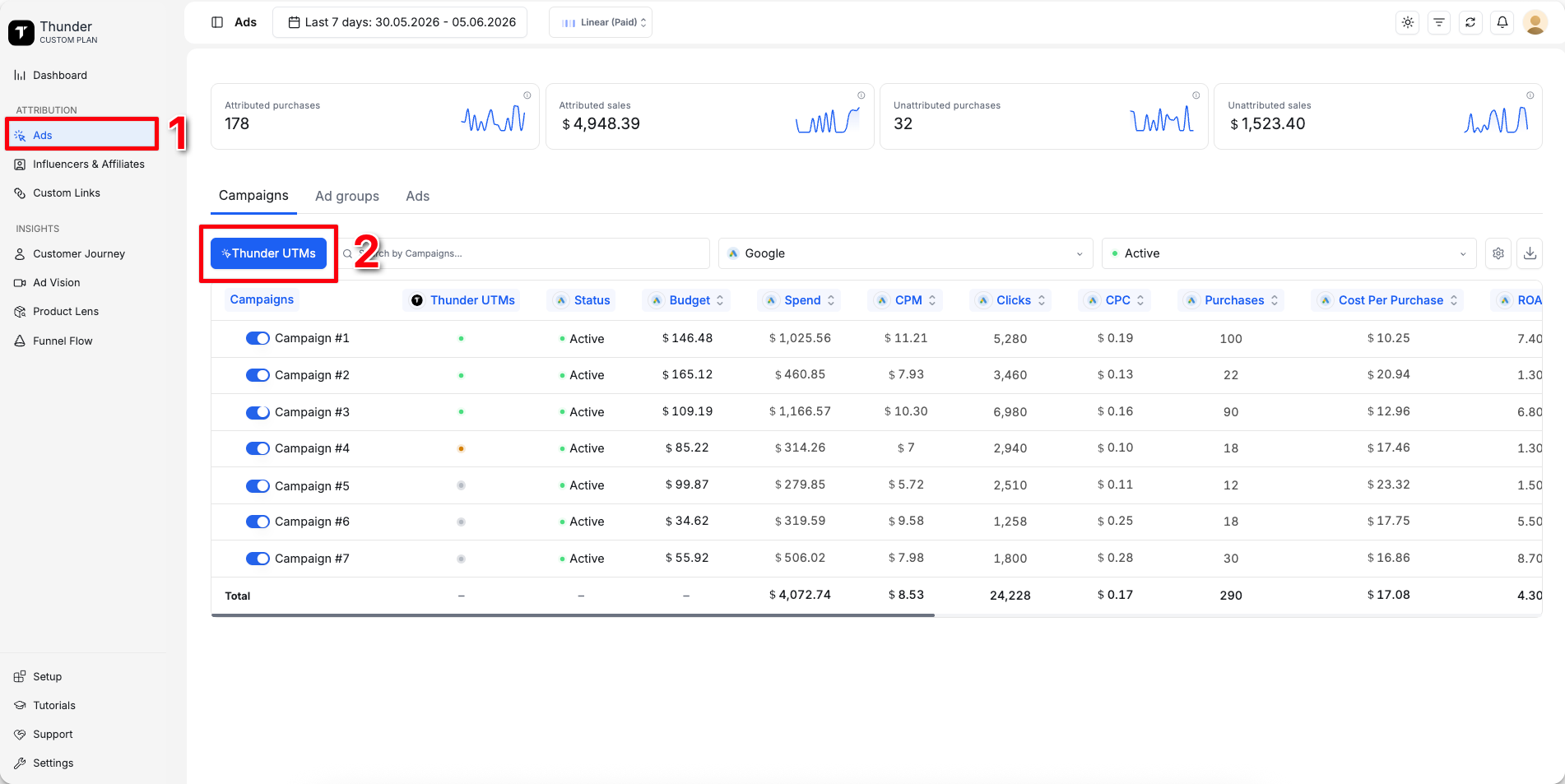
Go to Ads
- 2
Click Thunder UTMs
- 3
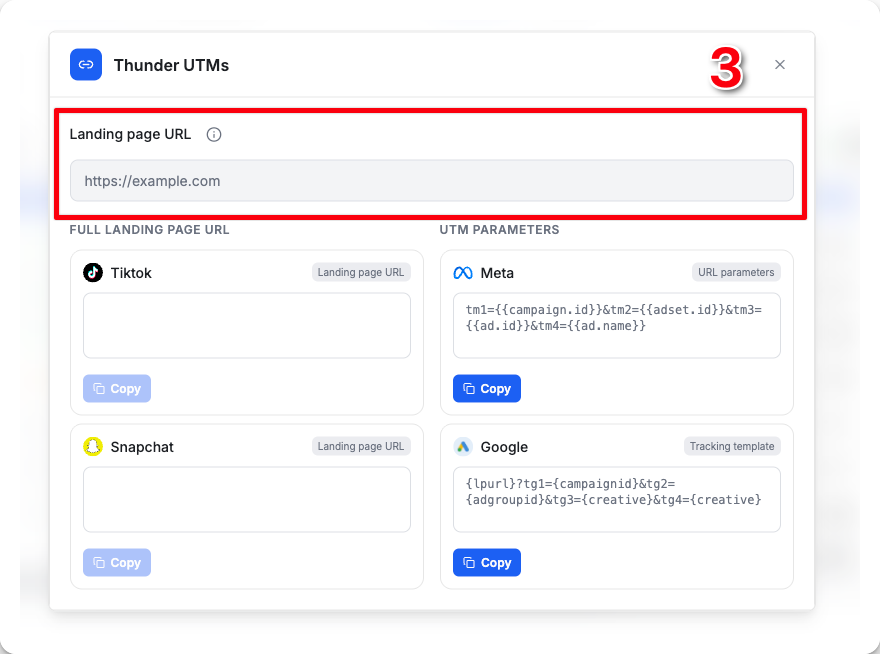
Paste your landing page URL into Thunder
- 4
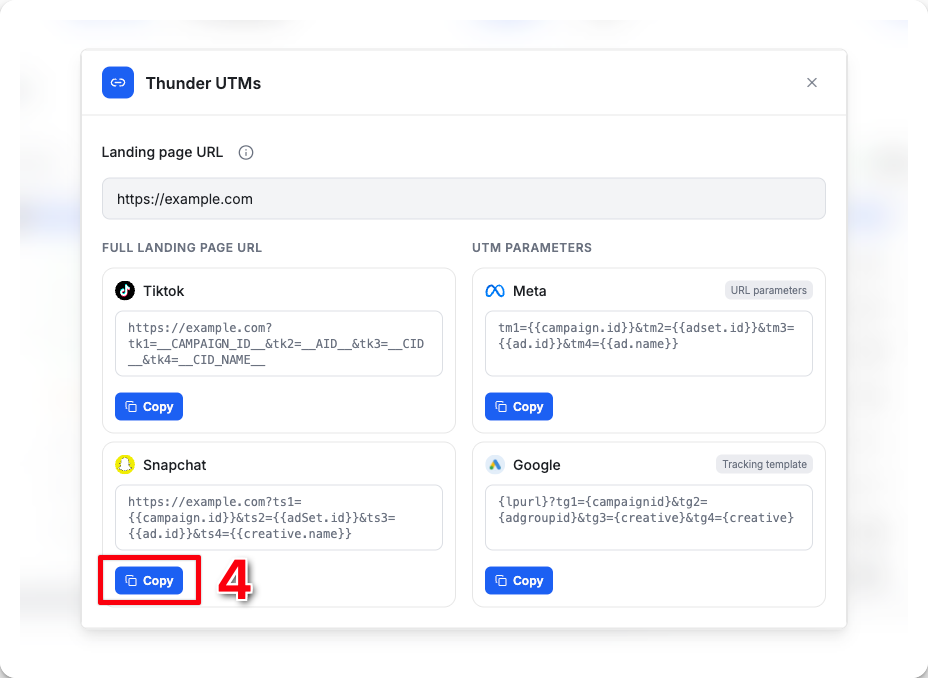
Thunder will generate a ready-to-use URL with the required Snapchat UTMs included
ts1={{campaign.id}}&ts2={{adSet.id}}&ts3={{ad.id}}&ts4={{creative.name}}Click Copy
- 5
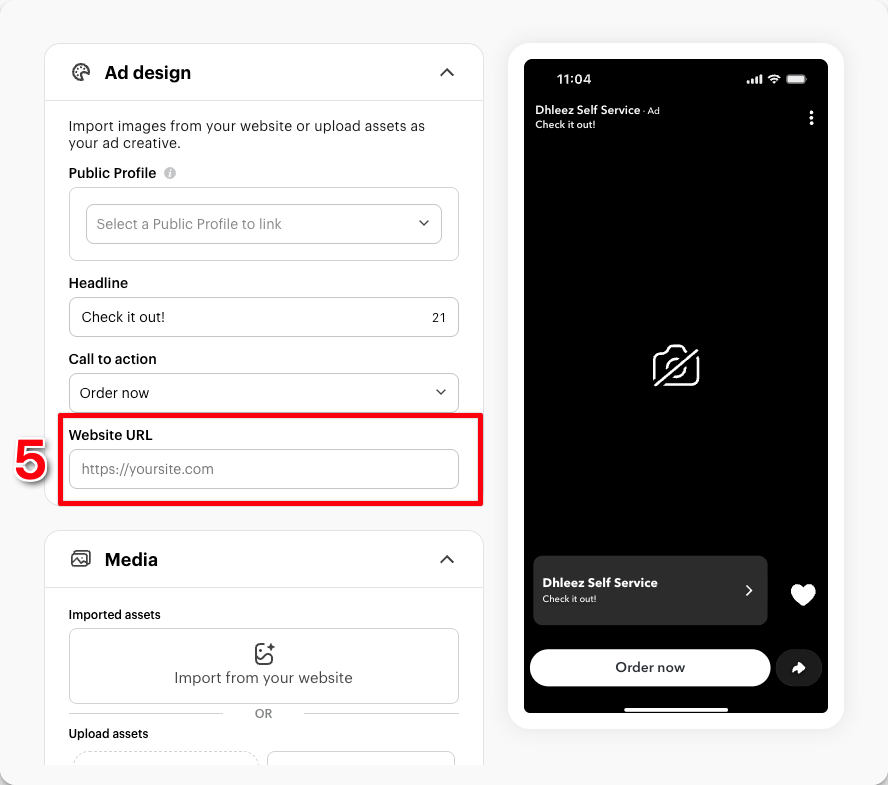
Open Snapchat Ads Manager, select the ad you want to track, then scroll down to the Website URL
- 6
Paste your Thunder landing page URL into the Website URL
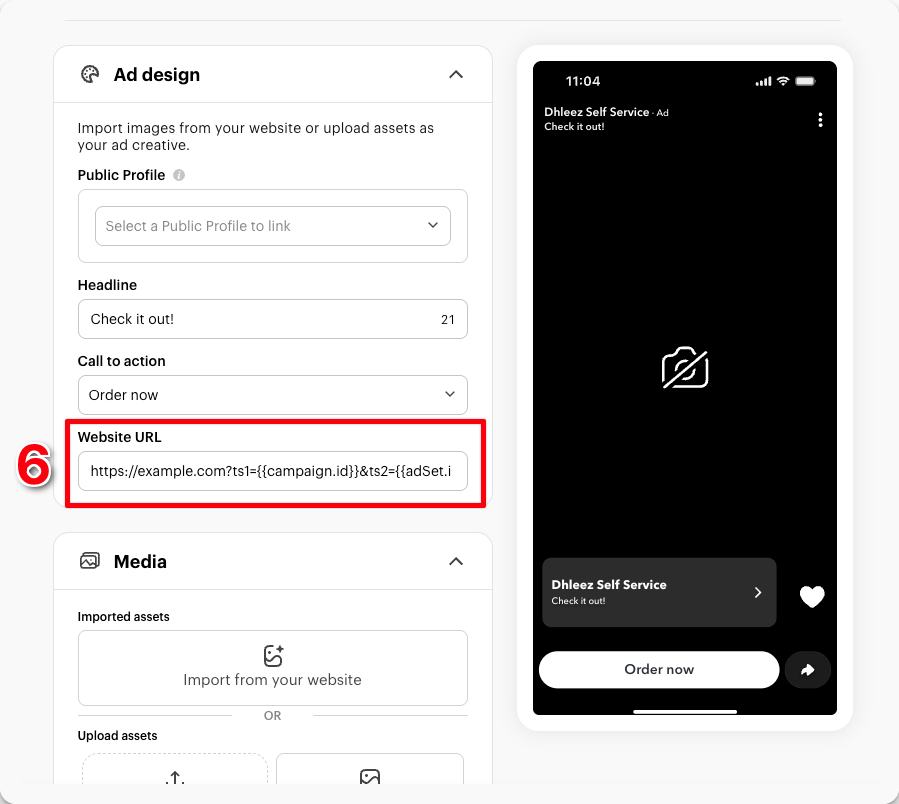
You're all set. Thunder will now accurately attribute purchases from this ad
Note: If you're running a catalogue campaign in Snapchat, follow the steps below to add the Thunder UTM parameters to your catalogue settings
- 1
Open Snapchat Ads Manager, select the ad you want to track, then scroll down to the URL Parameters
- 2
Click Add/edit parameters
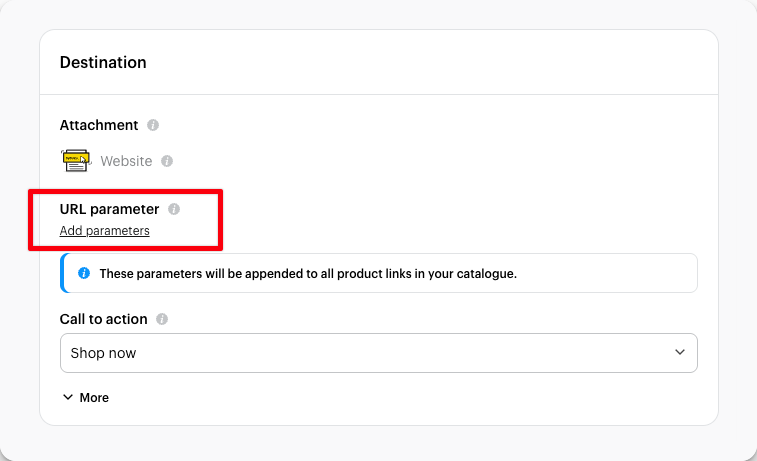
- 3
Set the following values:
Campaign ID →
{{campaign.id}}Ad ID →
{{ad.id}}Click Add a parameter
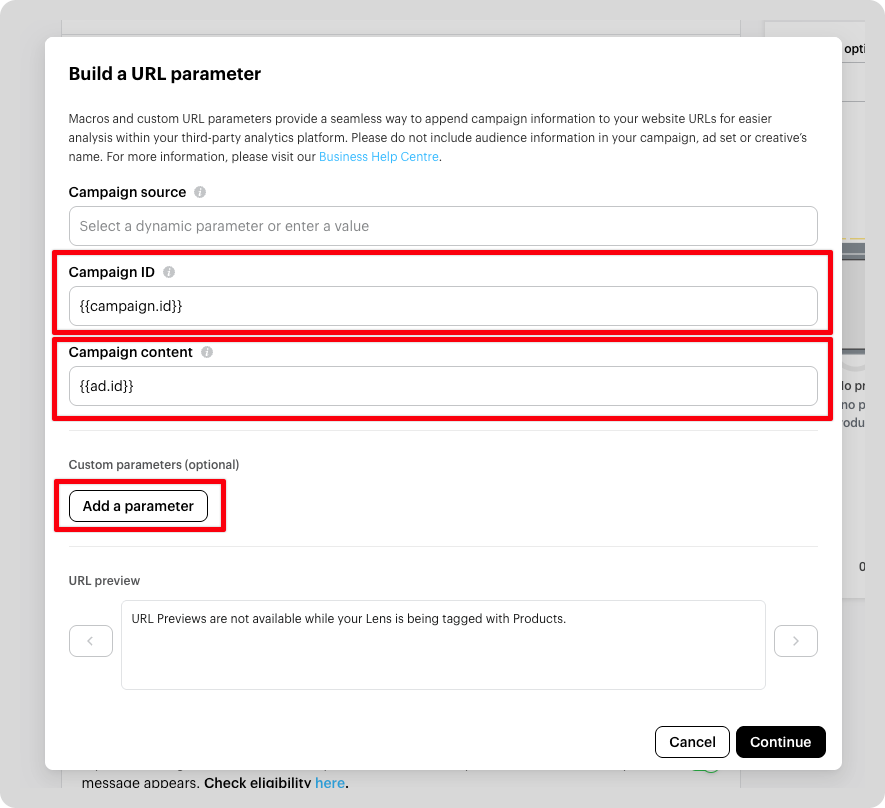
- 4
Add the following parameters:
Click Continue to Save your catalogue settings
Parameter name Parameter value ts1 {{campaign.id}}ts2 {{adSet.id}}ts3 {{ad.id}}ts4 {{creative.name}}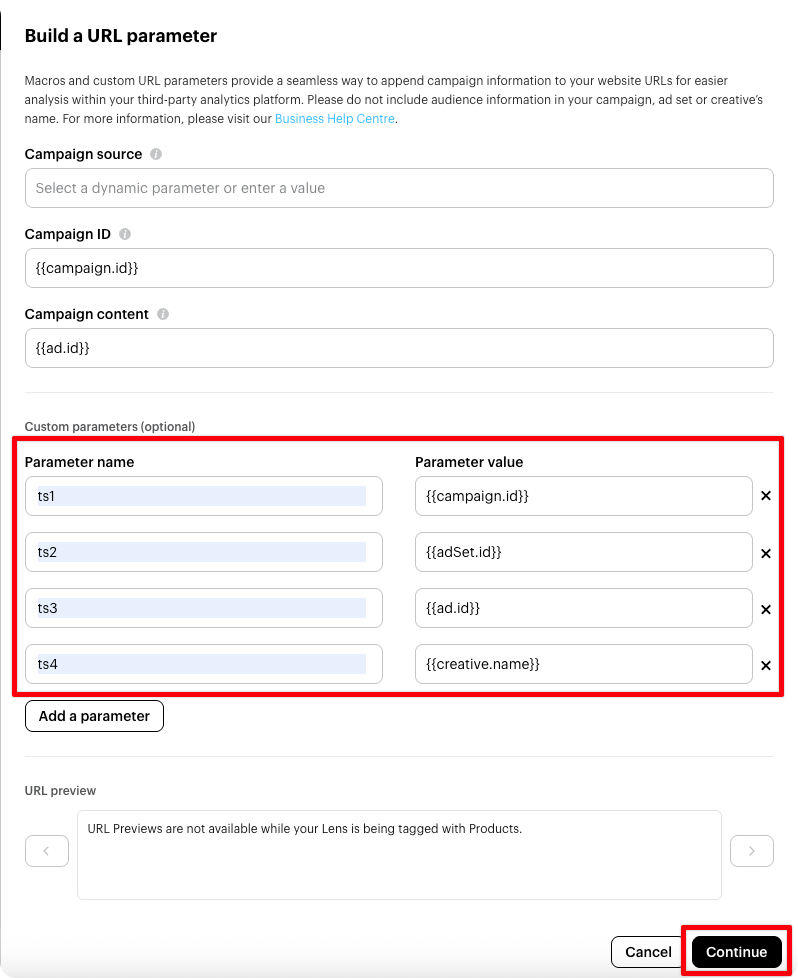
You're all set. Thunder will now start tracking accurate data from this ad.