

Snapchat UTMs Setup
You can set up Snapchat UTMs in two ways: Account-level setup (Recommended) or Ad-level setup (Manual).
Account-level setup (Recommended)
- 1
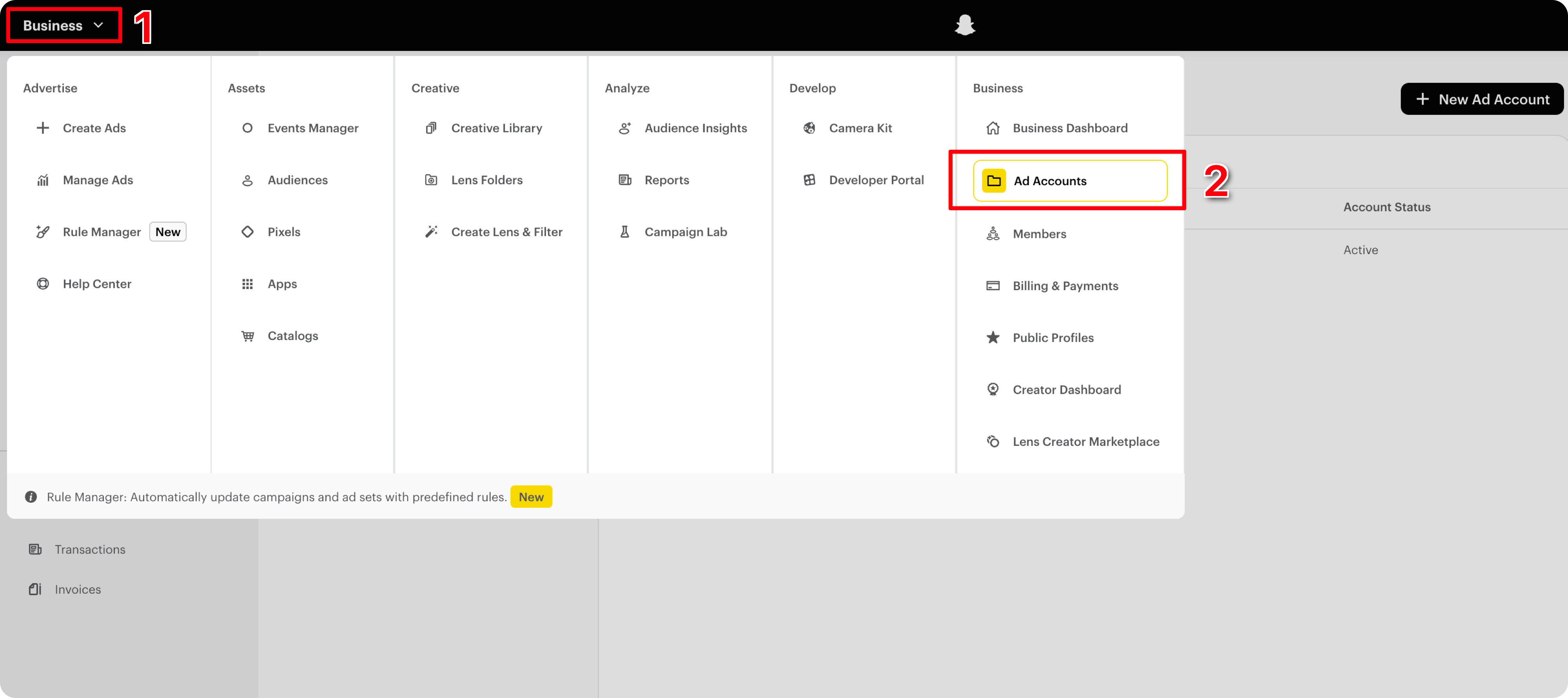
Go to Business in Snapchat ads manager
- 2
Click Ad Accounts
- 3
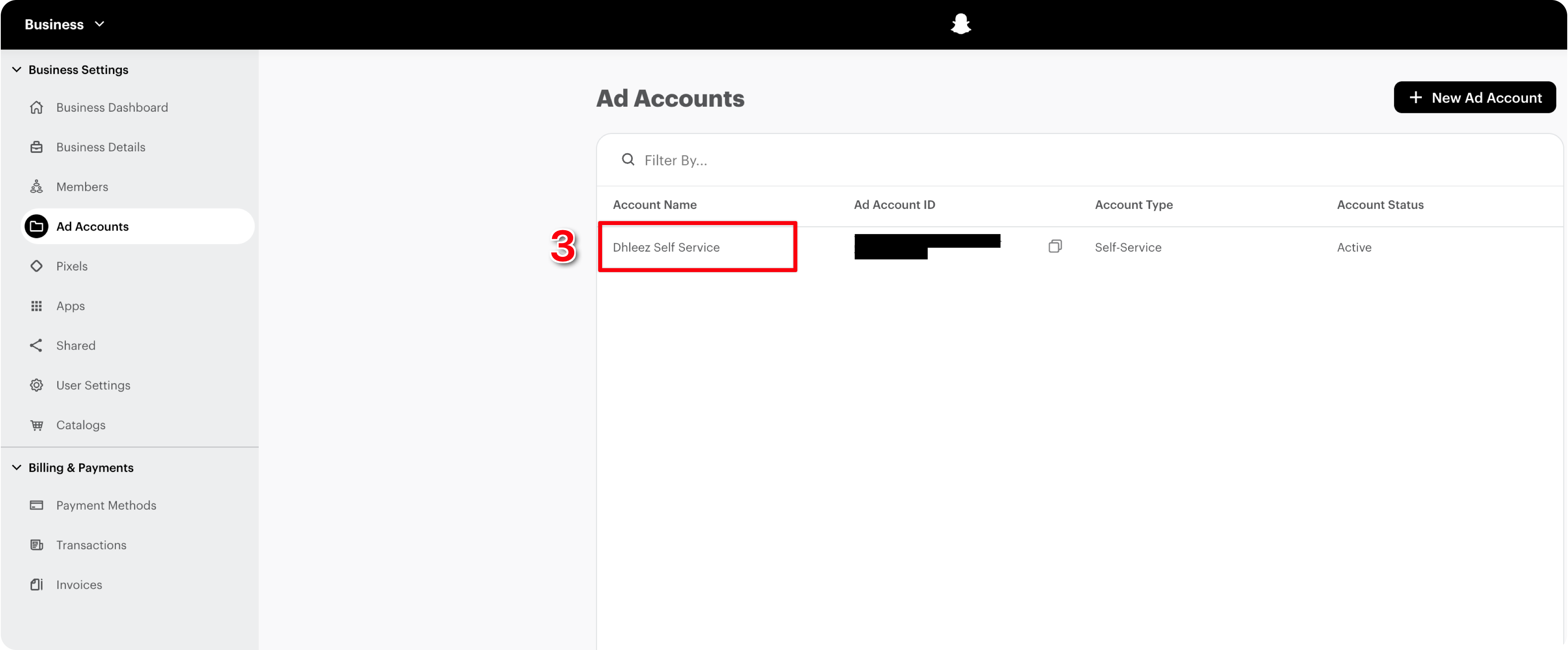
Select the ad account you want to track
- 4
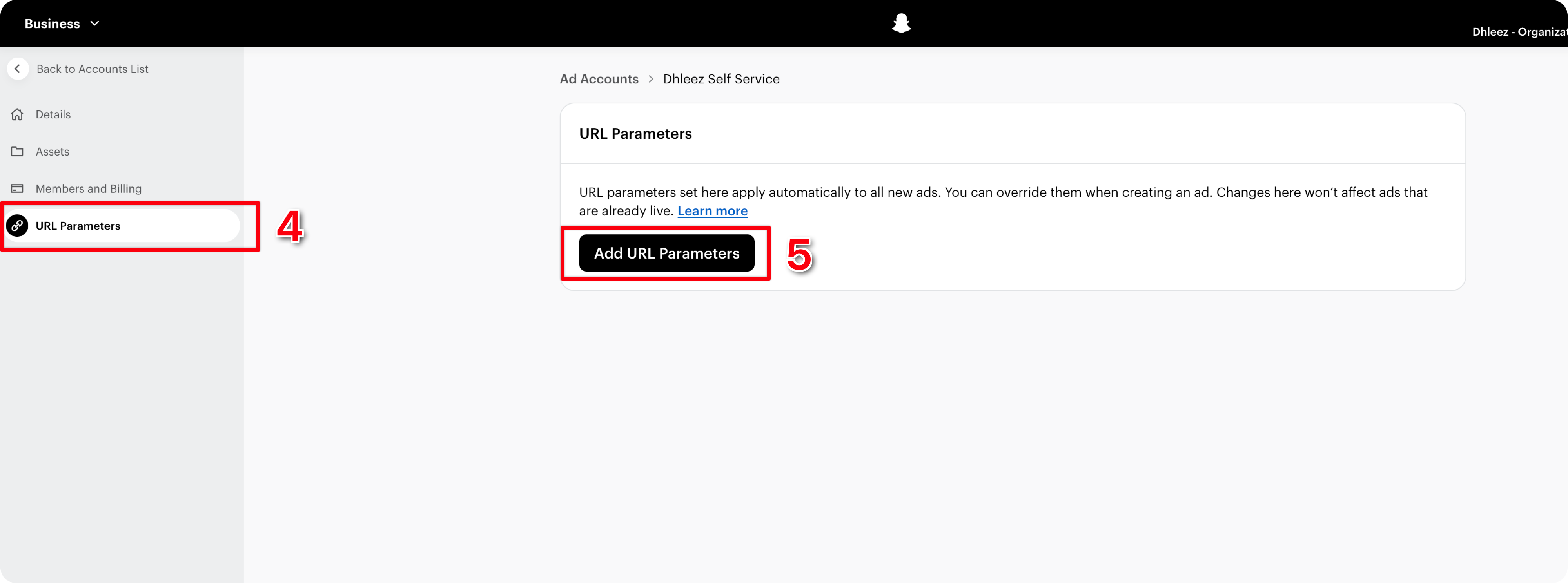
Click URL Parameters
- 5
Click Add URL Parameters
- 6
Paste Thunder UTMs in the URL Parameters
ts1={{campaign.id}}&ts2={{adSet.id}}&ts3={{ad.id}}&ts4={{creative.name}}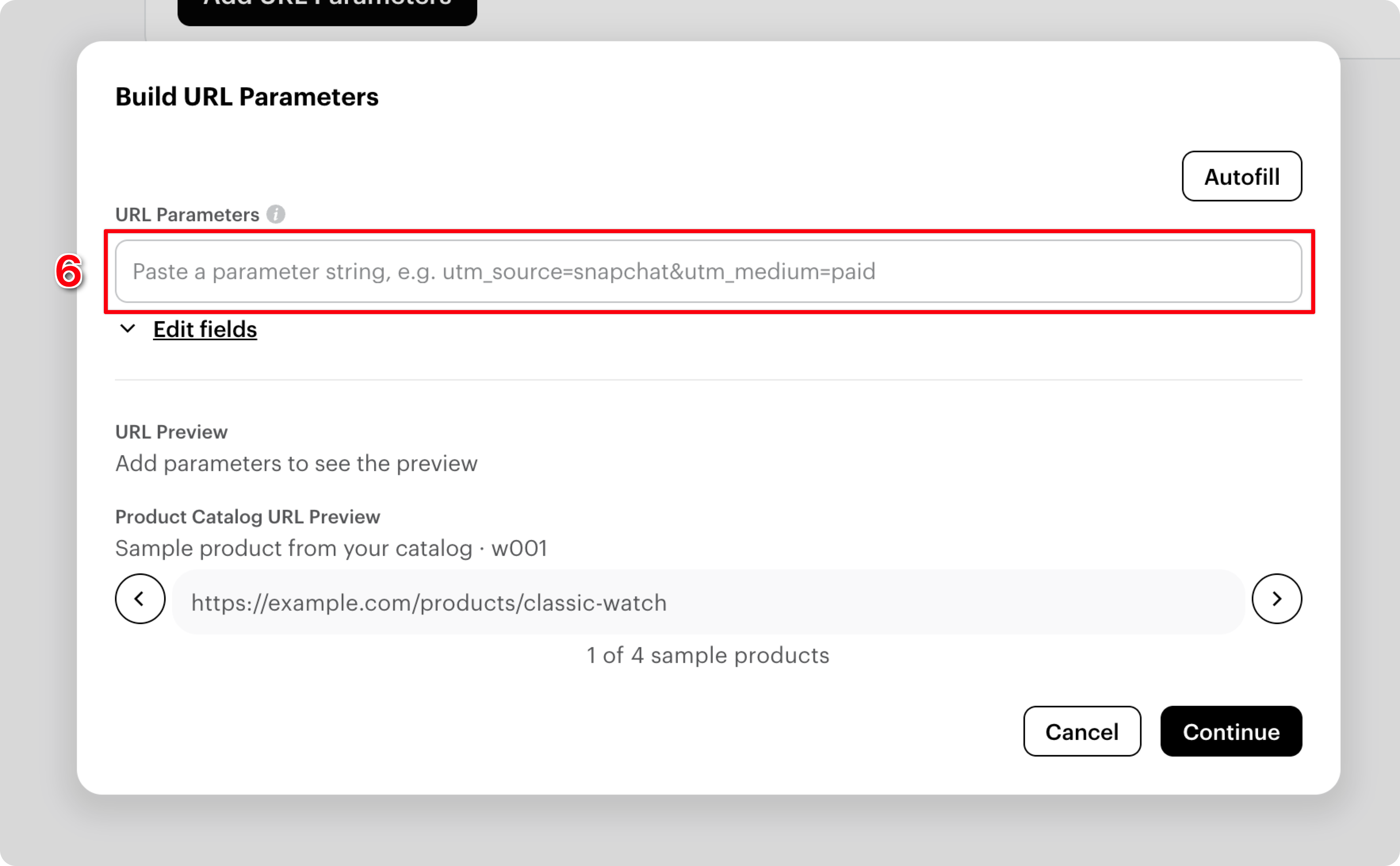
- 7
Click Continue
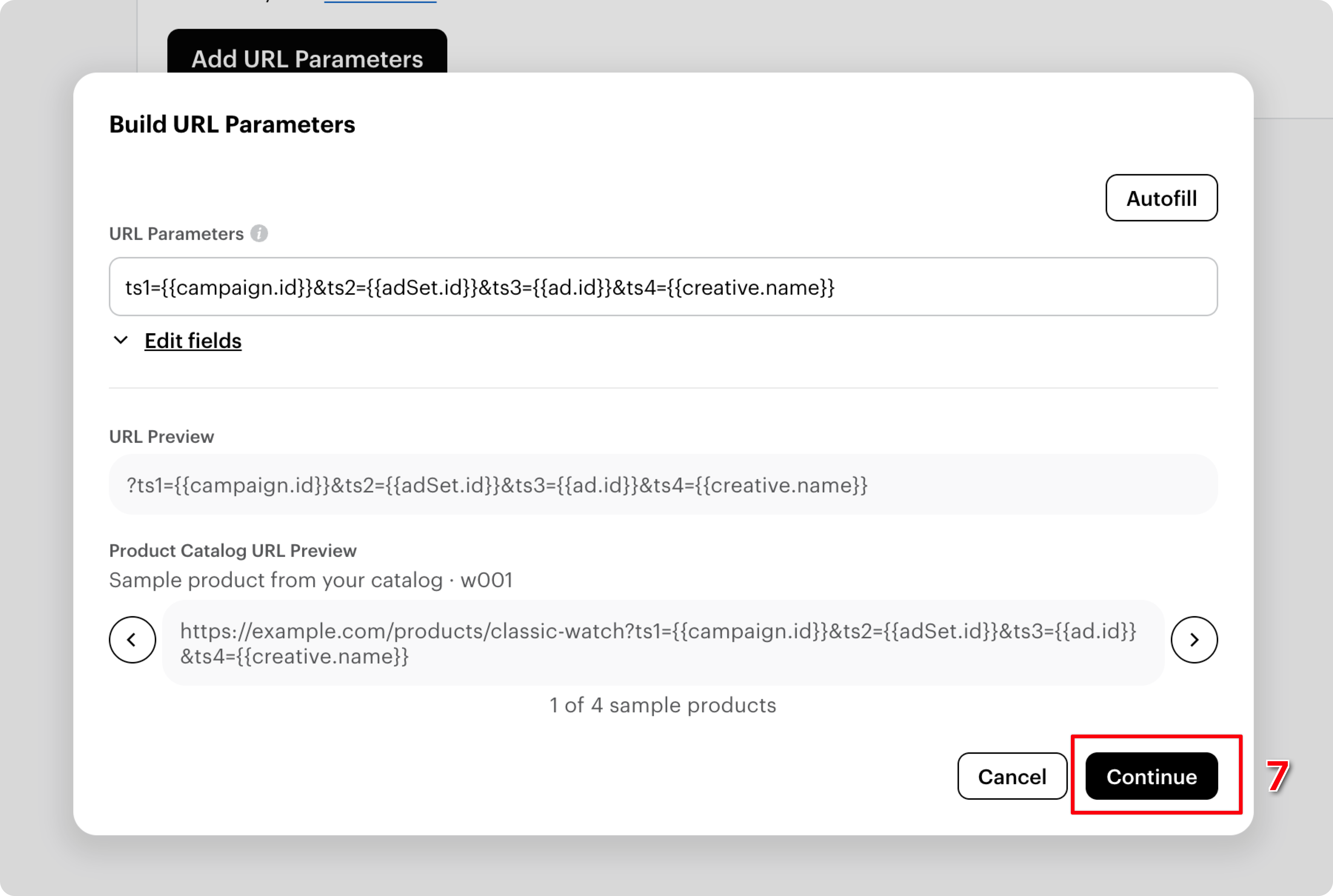
You’re all set. Thunder will now accurately attribute purchases from all new Snapchat Ads
Account-level setup only applies to new ads. It will not affect ads that are already live. For existing ads, you’ll need to update the UTMs manually.
Ad-level setup (Manual)
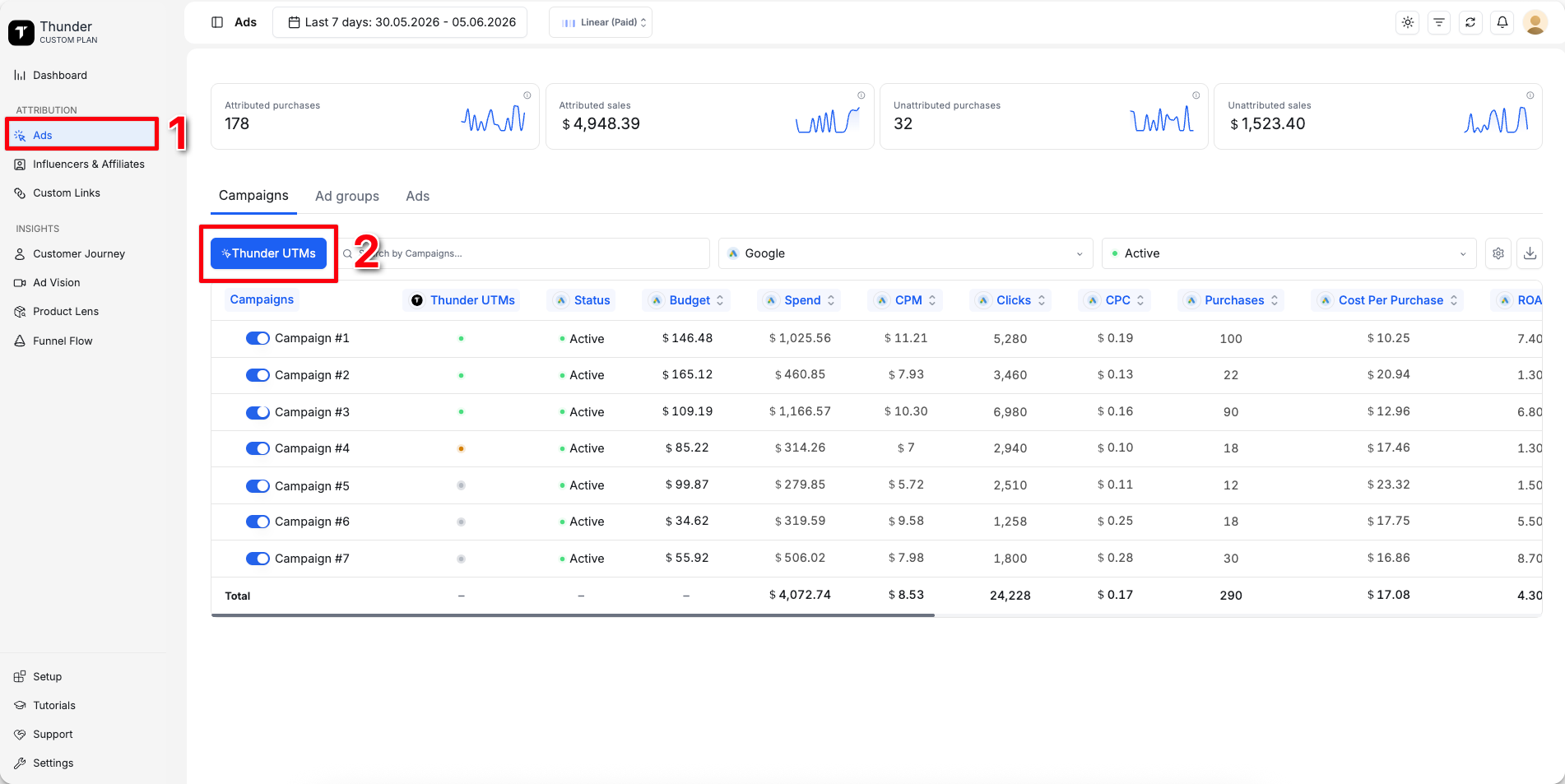
- 1
Go to Ads
- 2
Click Thunder UTMs
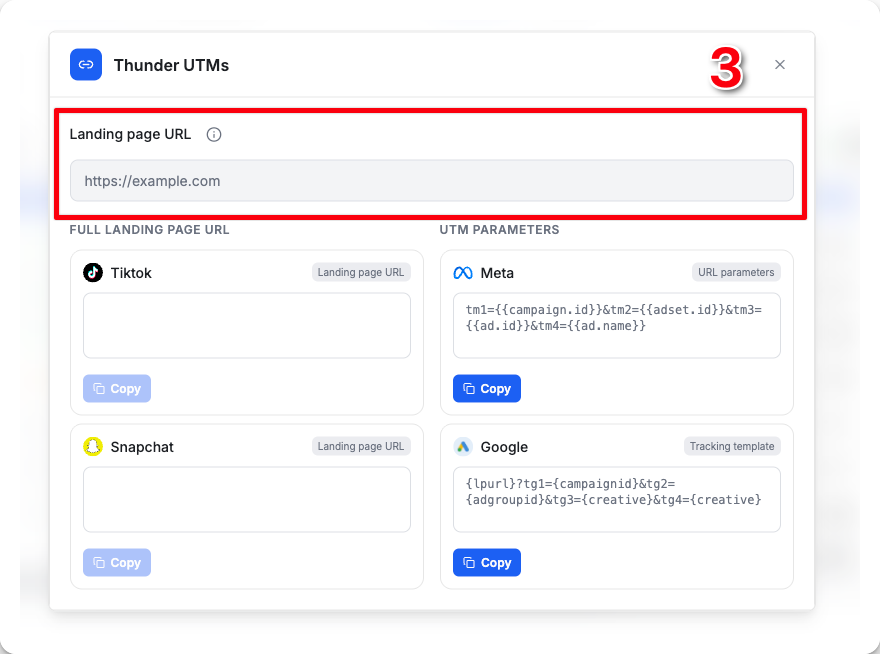
- 3
Paste your landing page URL into Thunder
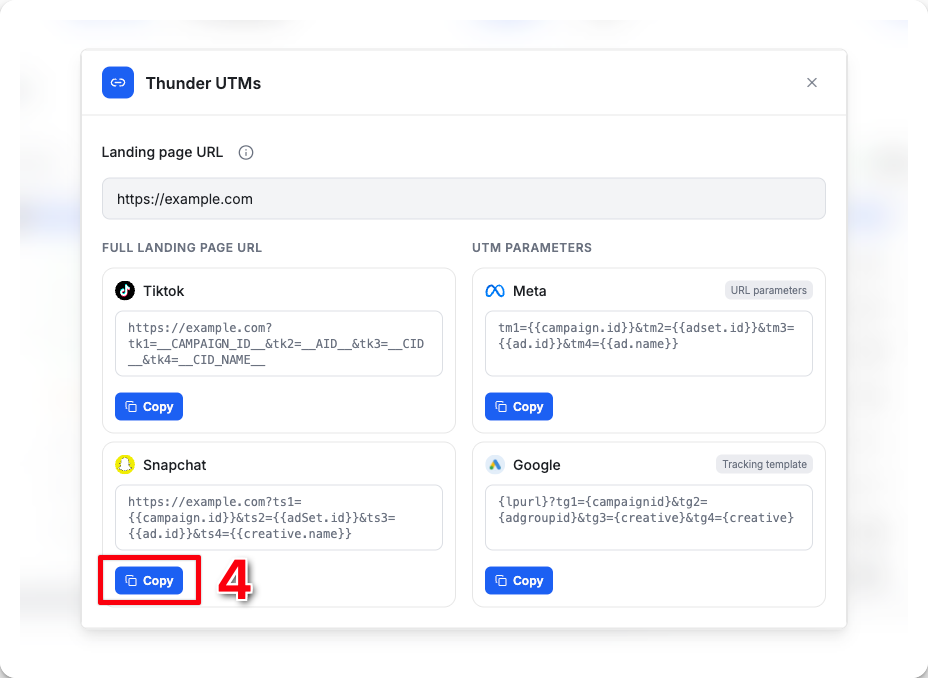
- 4
Thunder will generate a ready-to-use URL with the required Snapchat UTMs included
ts1={{campaign.id}}&ts2={{adSet.id}}&ts3={{ad.id}}&ts4={{creative.name}}Click Copy
- 5
Open Snapchat Ads Manager, select the ad you want to track, then scroll down to the Website URL
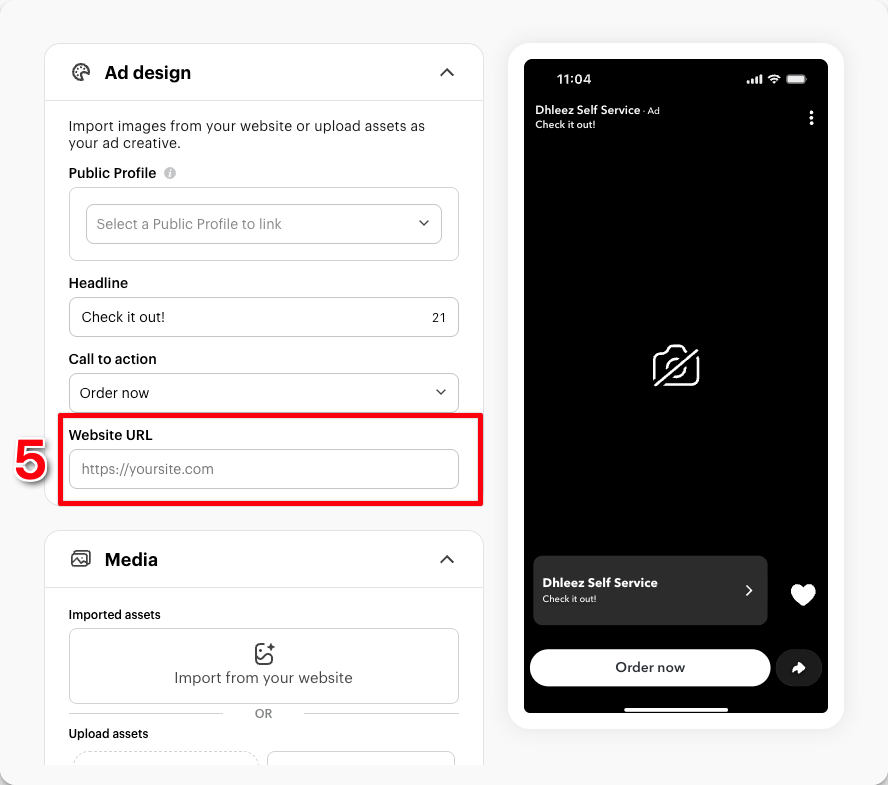
- 6
Paste your Thunder landing page URL into the Website URL
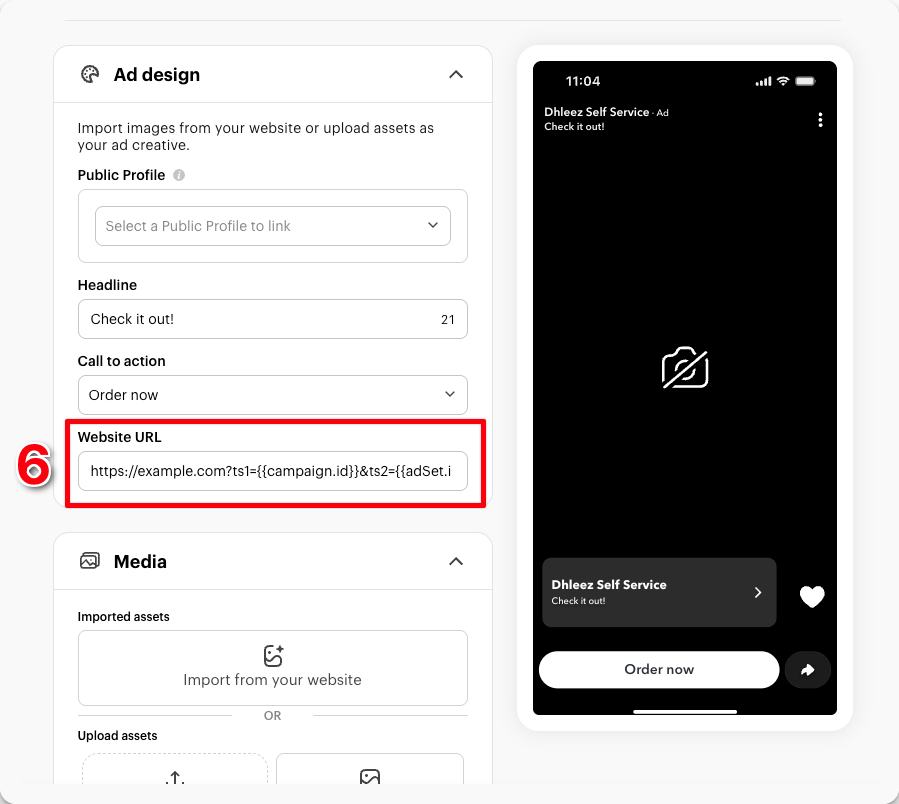
You're all set. Thunder will now accurately attribute purchases from this ad
Note: If you're running a catalogue campaign in Snapchat, follow the steps below to add the Thunder UTM parameters to your catalogue settings
- 1
Open Snapchat Ads Manager, select the ad you want to track, then scroll down to the URL Parameters
- 2
Click Add/edit parameters
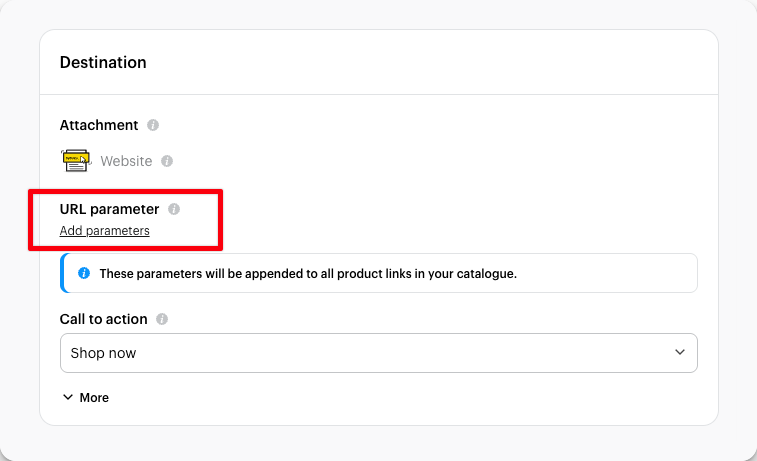
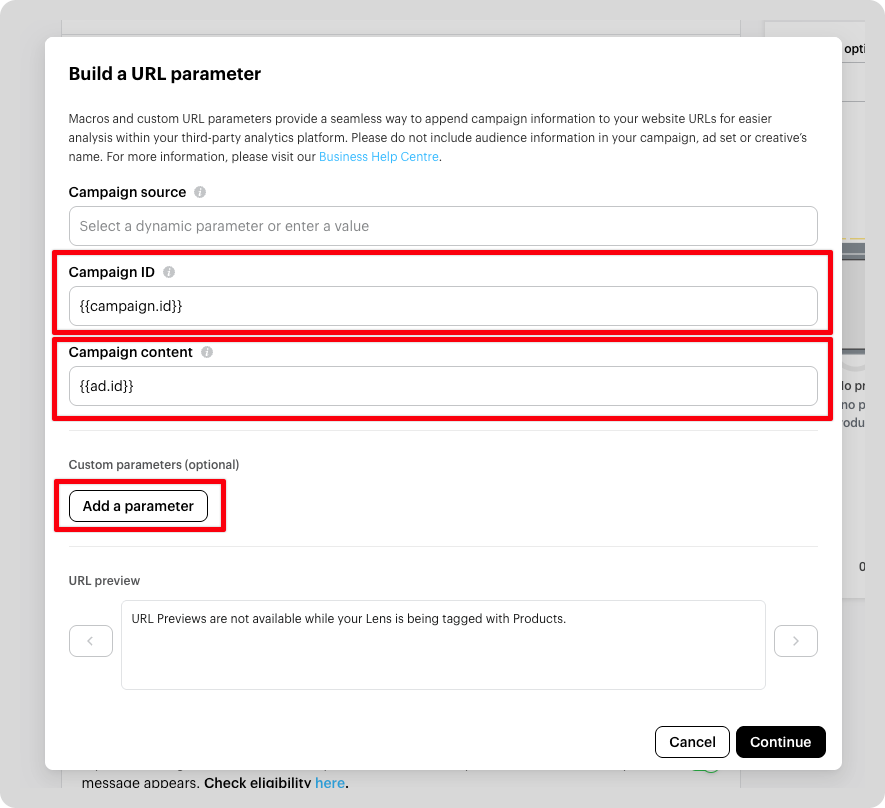
- 3
Set the following values:
Campaign ID →
{{campaign.id}}Ad ID →
{{ad.id}}Click Add a parameter
- 4
Add the following parameters:
Click Continue to Save your catalogue settings
Parameter name Parameter value ts1 {{campaign.id}}ts2 {{adSet.id}}ts3 {{ad.id}}ts4 {{creative.name}}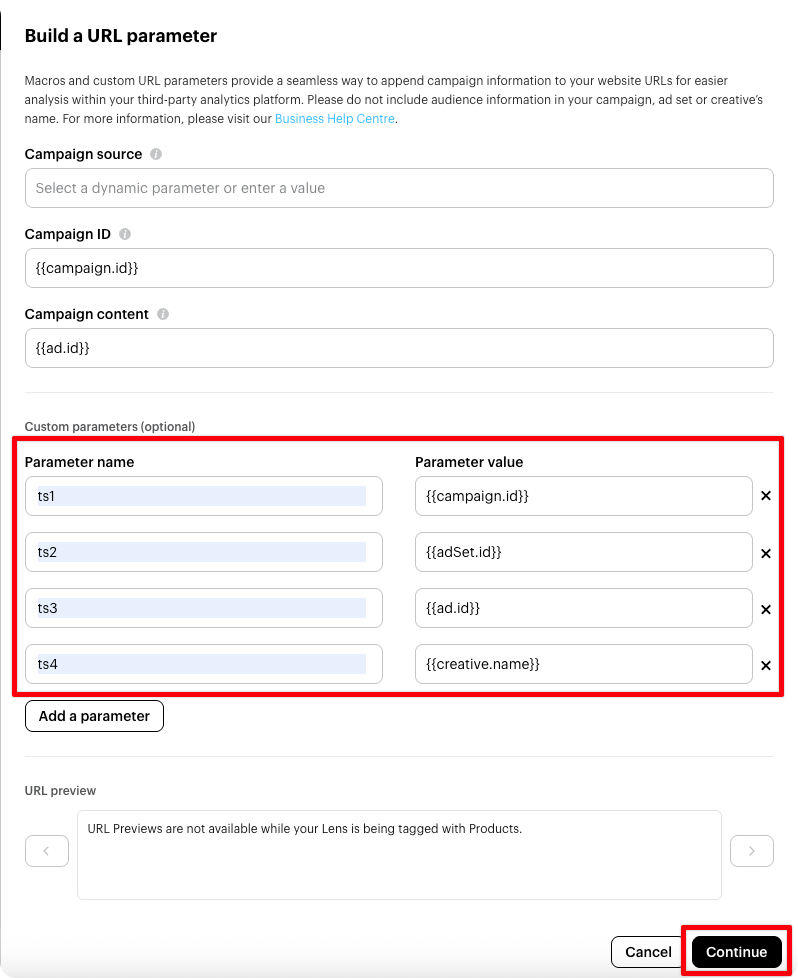
You're all set. Thunder will now start tracking accurate data from this ad.